From Clunky to Clever: How to Add AI Superpowers to Your Old Business Tools
From Clunky to Clever: How to Add AI Superpowers to Your Old Business Tools

If you’re still running your business on an old CRM, booking tool, or custom database that “just works,” you’re not alone. Many small businesses depend on systems built years ago—sometimes by a contractor who’s long gone. Replacing them feels risky, expensive, and time-consuming.
The good news: you don’t have to throw those tools away to enjoy modern AI features. You can bolt AI onto what you already have, adding smart assistants, automatic summaries, and helpful reminders around your existing workflow instead of rebuilding everything from scratch.
Why modernize instead of rebuild?
Before talking about how to add AI, it helps to be clear on why “modernizing” your existing tools is often smarter than starting over.
- Lower risk: Your current system already holds critical data and supports daily operations. Keeping it in place reduces the chance of a disruptive failure.
- Faster wins: Adding one AI-powered workflow can create value in days or weeks, not months or years.
- Less training: Your team continues using the same screens they know, with AI acting as a helpful layer on top.
- Budget-friendly: You can experiment with a small scope and scale up only once you see clear results.
Think of AI as a power tool you attach to your existing machine. The machine still runs, but now it can work faster, smarter, and with less manual effort.

Step 1: Pick one high‑impact workflow
Instead of asking, “How do I add AI everywhere?”, start with, “Where is my team wasting the most time?” Then target that one process.
Look for workflows that are:
- Repetitive: Same steps, over and over (e.g., typing similar email replies).
- Text-heavy: Lots of reading or writing (e.g., call notes, reports, follow-ups).
- Decision-light: Clear patterns or rules (e.g., flagging overdue leads, simple approvals).
Here are examples from different types of legacy tools:
| Tool you already use | Great candidate workflow for AI |
|---|---|
| CRM or contact database | Summarizing long customer histories into short briefs before calls |
| Booking or scheduling system | Drafting friendly reminder emails and no-show follow-ups |
| Inventory or ERP system | Flagging items likely to run low and suggesting reorder priorities |
| Shared inbox or ticket system | Classifying incoming messages and suggesting quick replies |
| Custom access database or spreadsheet | Cleaning up inconsistent data and highlighting obvious errors |
The best place to start with AI isn’t your fanciest idea. It’s the task your team groans about every single day.
Choose one workflow that combines high annoyance and clear rules. That’s your pilot project.
Step 2: Decide what kind of AI help you want
Once you’ve picked the workflow, decide what role AI should play. You don’t have to jump straight to a full “robot assistant.” Even small additions can be powerful.
Common AI upgrades for old tools
- Smart summaries: Turn long notes, tickets, or histories into short bullet points.
- Drafting assistant: Generate first drafts of emails, updates, or descriptions you can quickly edit.
- Classification & tagging: Automatically label leads, tickets, or products with categories or urgency.
- Reminders & nudges: Suggest follow-ups based on time since last contact or customer behavior.
- Simple predictions: Estimate which deals are hot, which bookings may cancel, or which items may run low.
For your first project, stay in the “assistant” zone: AI suggests, you approve. That keeps risk low and trust high.
Step 3: Connect your workflow to an AI agent
You don’t need to rewrite your legacy system to use AI. In many cases, you simply give an AI agent access to the same information your team sees and ask it to perform a specific job.
What is an AI agent, in plain English?
An AI agent is like a digital helper with a job description. You tell it:
- What it’s responsible for (e.g., “summarize call notes into 5 bullets”),
- What information it can look at (e.g., “meeting notes and contact details”),
- What tools it’s allowed to use (e.g., “send the summary back as a note in our system”).
Unlike a simple chatbot, an AI agent can follow steps, call other tools (like your CRM or email), and remember context within a task.
How to connect without deep technical skills
Here are non-technical ways to hook your agent into an old system:
- Copy-paste helpers: Use an AI sidebar or browser extension where staff paste data from your legacy system and paste the AI’s output back. It’s manual, but quick to pilot.
- Email-based workflows: Have your system send an email (e.g., meeting notes) to a special AI address. The agent processes it and replies with a summary or recommendation.
- No-code automation tools: Services like Zapier, Make, or Power Automate can grab data from forms, emails, or spreadsheets connected to your legacy app, send it to an AI, and post the result somewhere useful.
- Export/import files: Export CSV or Excel files, run them through an AI-powered tool for cleaning or tagging, then import the improved file back.
Later, a developer can connect the agent more directly via an API (a technical door for systems to talk to each other). But you don’t have to wait for that to start seeing value.
A practical example: AI summaries for an old CRM
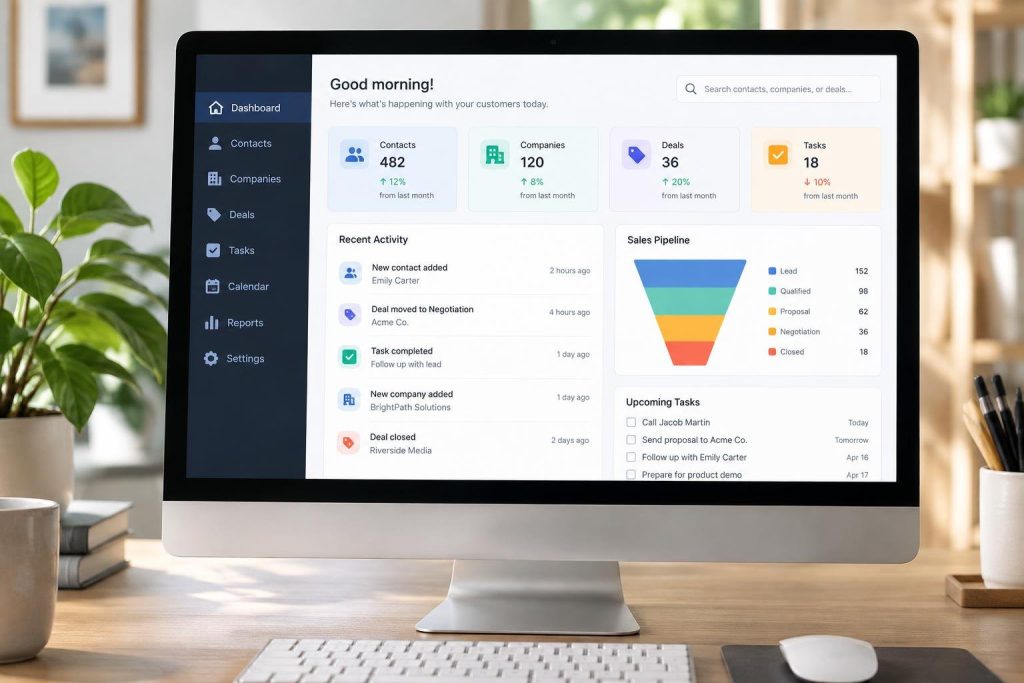
Let’s walk through a simple example: You have a clunky CRM where sales reps log every call. Before each meeting, they spend 10–15 minutes scrolling through notes to remember the story.
Here’s how you could add an AI summary assistant without touching the CRM’s code:
- Create a standard way for reps to export or copy customer notes (for example, highlight text and copy, or use an existing “print history” button).
- Use an AI tool (or agent) where reps paste those notes into a text box.
- Give the agent a clear job description, like: “Summarize this customer’s history in 5 bullets, then list 3 suggested next steps and 3 useful questions to ask on the next call.”
- Have reps paste the result back into the CRM as a new note titled “AI Summary – [date]”.
- After a few weeks, review: Do calls feel better prepared? Are reps saving time?
This “glue” approach—human copy/paste around an AI assistant—is often enough to prove value. Once it’s clearly working, you can justify investing in a more automated connection.
Step 4: Keep AI safe, private, and under control
When you point AI at your real business data, you need guardrails. Focus on four areas: access, approvals, accuracy, and anonymity.
| Risk area | Simple safeguards |
|---|---|
| Access | Limit who can send data to the AI. Use separate logins or a shared account managed by an admin. |
| Approvals | Start with AI suggestions only. A human must review before anything is sent to customers or saved permanently. |
| Accuracy | Clearly label AI-generated content (e.g., “AI draft – please review”) and train your team to double-check important details. |
| Anonymity | Avoid sending unnecessary sensitive data (like full IDs or payment info). Use initials or order numbers when possible. |
If you work in a regulated industry (healthcare, finance, legal), talk to a professional about compliance before sending data to any AI service.
Do I need to host everything on my own servers for AI to be safe?
Not necessarily. Many small businesses safely use cloud-based AI services, as long as they control who has access, avoid sending highly sensitive information, and choose reputable providers. Self-hosting can offer more control and privacy but is more complex. A middle ground is to host your main systems with a trusted provider, like Webasen for your website or web apps, and use AI services that clearly explain how they handle your data.
Step 5: Test, measure, and then automate more
Treat your first AI upgrade like a pilot project, not a permanent change. Involve a small group, measure results, and improve the process before rolling it out to everyone.
Run a 2–4 week pilot
- Pick 2–5 people who use the workflow often and are open-minded about testing.
- Write a one-page guide with screenshots showing exactly how to use the AI helper.
- Track a few simple metrics: time saved per task, number of errors or edits, and how often people actually use the AI.
- Collect feedback weekly: what’s helpful, what’s confusing, what needs to change.
You don’t need fancy analytics. A short survey or quick discussion in your weekly meeting is enough.
Decide what to automate next
Once the pilot proves value, you can gradually increase automation:
- Move from copy-paste to automatic triggers (for example, automatically summarizing notes when a call is logged).
- Let the AI fill in drafts by default, with humans just reviewing and sending.
- Expand to related workflows (for example, from call summaries to drafting follow-up emails).
The goal isn’t to replace your legacy system overnight. It’s to wrap it in smarter, lighter workflows that make your team faster and your tools feel brand new.
Conclusion: Your old tools can learn new tricks
You don’t need a brand-new platform to get the benefits of AI. By choosing one painful workflow, defining a clear AI role, connecting it with simple tools, and testing carefully, you can turn clunky systems into clever ones.
Start small, learn fast, and improve as you go. Over time, you’ll build a set of AI helpers around your existing software—enough that one day, you may forget those tools were ever considered “legacy” at all.